「ヘルプ:機能」の版間の差分
ナビゲーションに移動
検索に移動
ページの作成:「ファイル:help-features.png」 |
編集の要約なし タグ: 手動差し戻し |
||
| (同じ利用者による、間の4版が非表示) | |||
| 1行目: | 1行目: | ||
<gallery widths="480" heights="270"> | |||
ファイル:help-features.png|'''シンプルなデザイン:''' 初心者から上級者まで、誰でも使いやすい設計で、必要な機能はすぐに見つかります。 | |||
ファイル:help-features-1.png|'''色分け表示:''' テキストの編集モードを切り替えると、テキストが見やすくなり、プログラムのコードもカラフルに編集できます。 | |||
ファイル:help-features-2.png|'''文字サポート:''' ユニコード、サロゲートペア、異体字シーケンス (IVS) に対応し、言語や文字に制限がありません。 | |||
ファイル:help-features-3.png|'''カラー絵文字:''' Windows 8.1 以降のカラー絵文字にも対応しています。 | |||
ファイル:help-features-4.png|'''美しい文字描画:''' DirectWrite により、文字が美しく鮮明に表示され、読みやすさを提供します。 | |||
ファイル:help-features-5.gif|'''トゥルーインライン入力:''' トゥルーインラインの日本語入力方式に対応し、変換位置が一目でわかります。 | |||
ファイル:help-features-6.png|'''縦書き編集:''' 日本語の文章や小説を書くのに最適で、文字を縦方向に表示して編集できます。 | |||
ファイル:help-features-7.png|'''マーカー機能:''' 重要な部分に色を付けて文書の要点を把握しやすくします。 | |||
ファイル:help-features-8.png|'''正規表現検索/置換:''' 鬼雲、鬼車を駆使した強力な正規表現検索/置換機能を備え、テキストの効率的な編集が可能です。 | |||
ファイル:help-features-9.png|'''タブ機能:''' 複数の文書を同時に開き、タブを使って簡単に切り替えられます。 | |||
ファイル:help-features-10.gif|'''マクロ機能:''' 操作を記録して自動実行でき、作業効率を向上させることができます。また、JavaScript でマクロを記述することも可能です。 | |||
ファイル:help-features-11.gif|'''単語補完:''' 入力された文字から始まる単語をリストから選択して、入力ミスを最小限に抑えます。 | |||
ファイル:help-features-12.png|'''アウトライン機能:''' 文書の見出しを階層的に表示して、文書全体の構造を把握しやすくします。 | |||
ファイル:help-features-13.png|'''印刷機能:''' 編集内容に応じたカラフルな印刷や段組み印刷がサポートされており、文書の印刷品質を向上させます。 | |||
ファイル:help-features-14.png|'''HTML 整形:''' HTML Tidy を使用した文書整形とエラーチェックで、HTML の品質を向上させます。 | |||
ファイル:help-features-15.png|<span style="background-color: crimson; border-radius: 3px; color: white; font-size: smaller; font-weight: bold; padding: 0.2em;">New</span> '''Zen モード:''' エディター部分のみを全画面表示して、作業に完全に集中できます。 | |||
ファイル:help-features-16.gif|<span style="background-color: crimson; border-radius: 3px; color: white; font-size: smaller; font-weight: bold; padding: 0.2em;">New</span> '''タイプライター スクロール:''' 編集箇所を画面中央に配置し、視線移動を最小限に抑え、快適な編集をサポートします。 | |||
ファイル:help-features-17.png|<span style="background-color: crimson; border-radius: 3px; color: white; font-size: smaller; font-weight: bold; padding: 0.2em;">New</span> '''スクロール バー マーカー:''' スクロール バーに検索結果や変更箇所を表示し、文書の状態を簡単に確認できます。 | |||
ファイル:help-features-18.gif|<span style="background-color: crimson; border-radius: 3px; color: white; font-size: smaller; font-weight: bold; padding: 0.2em;">New</span> '''自動保存:''' 強制終了や保存し忘れに備えて、文書を自動で保存します。 | |||
ファイル:help-features-19.gif|<span style="background-color: crimson; border-radius: 3px; color: white; font-size: smaller; font-weight: bold; padding: 0.2em;">New</span> '''ワークスペース:''' 終了時の状態を記憶し、作業を中断した場所から再開できます。 | |||
ファイル:help-features-20.gif|<span style="background-color: crimson; border-radius: 3px; color: white; font-size: smaller; font-weight: bold; padding: 0.2em;">New</span> '''マルチ カーソル:''' 複数箇所を同時に編集でき、一括変更や整列などが簡単に行えます。 | |||
ファイル:help-features-21.png|<span style="background-color: crimson; border-radius: 3px; color: white; font-size: smaller; font-weight: bold; padding: 0.2em;">New</span> '''あいまい検索:''' 類似した文字列を簡単に検索し、表記のゆれや誤字などにも対応できます。 | |||
</gallery> | |||
2024年12月1日 (日) 15:46時点における最新版
-
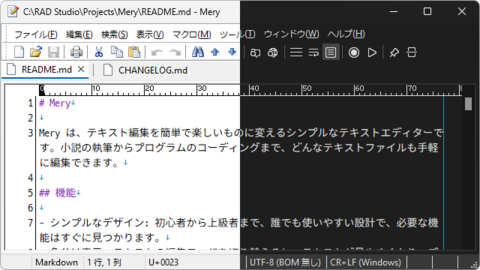 シンプルなデザイン: 初心者から上級者まで、誰でも使いやすい設計で、必要な機能はすぐに見つかります。
 -
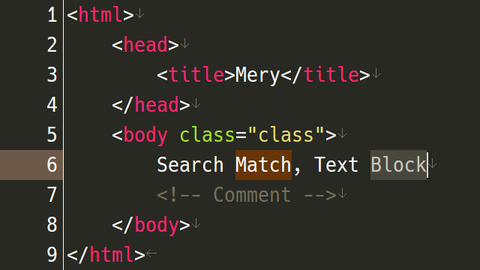 色分け表示: テキストの編集モードを切り替えると、テキストが見やすくなり、プログラムのコードもカラフルに編集できます。
 -
 文字サポート: ユニコード、サロゲートペア、異体字シーケンス (IVS) に対応し、言語や文字に制限がありません。
 -
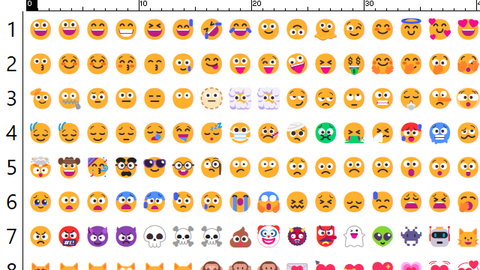 カラー絵文字: Windows 8.1 以降のカラー絵文字にも対応しています。
 -
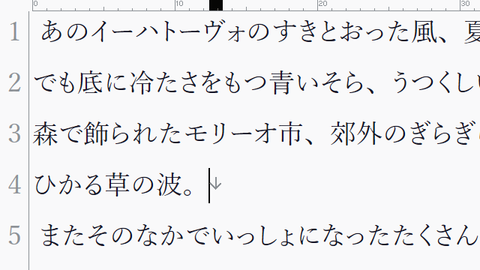 美しい文字描画: DirectWrite により、文字が美しく鮮明に表示され、読みやすさを提供します。
 -
 トゥルーインライン入力: トゥルーインラインの日本語入力方式に対応し、変換位置が一目でわかります。
 -
 縦書き編集: 日本語の文章や小説を書くのに最適で、文字を縦方向に表示して編集できます。
 -
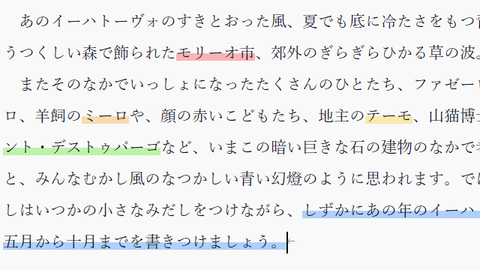 マーカー機能: 重要な部分に色を付けて文書の要点を把握しやすくします。
 -
 正規表現検索/置換: 鬼雲、鬼車を駆使した強力な正規表現検索/置換機能を備え、テキストの効率的な編集が可能です。
 -
 タブ機能: 複数の文書を同時に開き、タブを使って簡単に切り替えられます。
 -
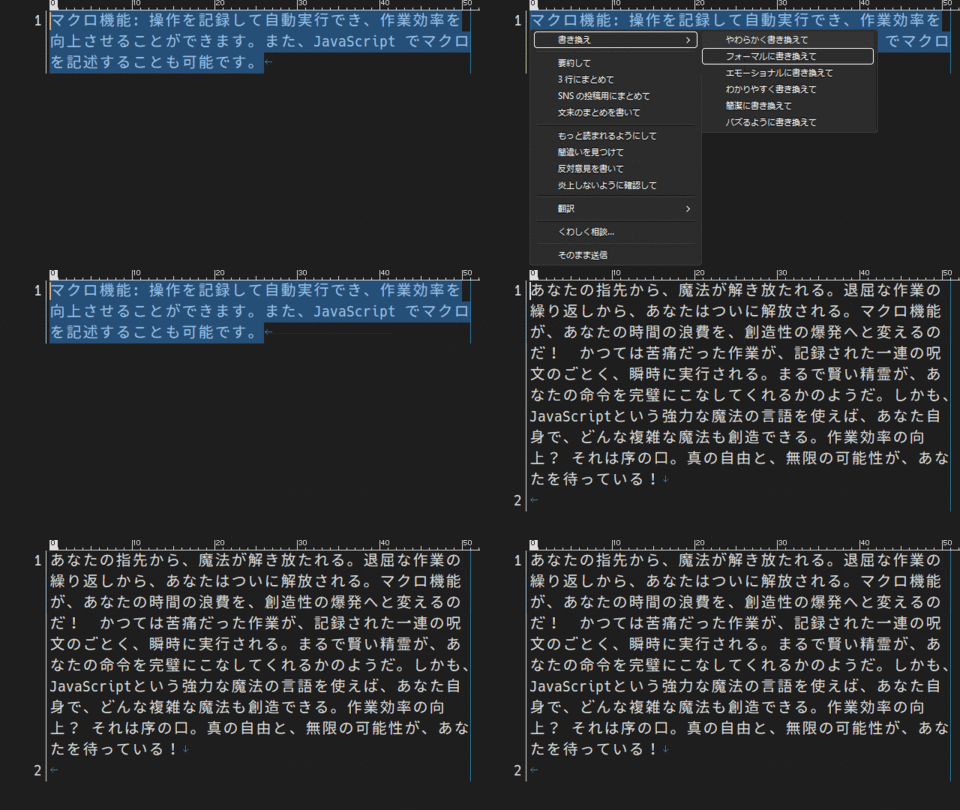 マクロ機能: 操作を記録して自動実行でき、作業効率を向上させることができます。また、JavaScript でマクロを記述することも可能です。
 -
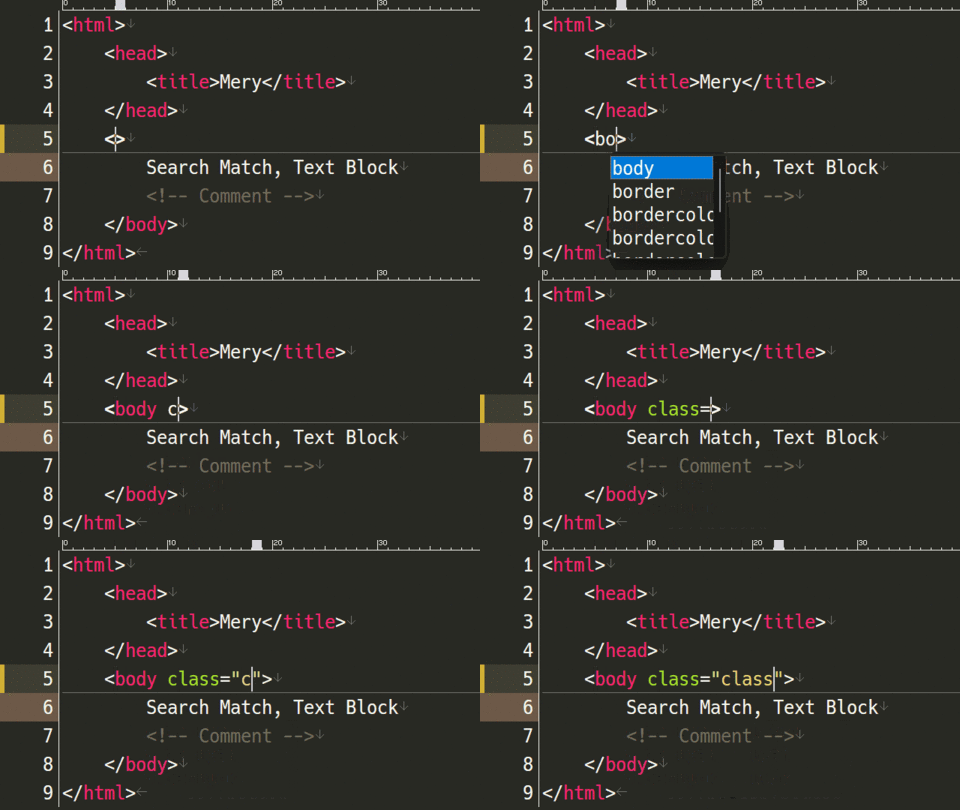 単語補完: 入力された文字から始まる単語をリストから選択して、入力ミスを最小限に抑えます。
 -
 アウトライン機能: 文書の見出しを階層的に表示して、文書全体の構造を把握しやすくします。
 -
 印刷機能: 編集内容に応じたカラフルな印刷や段組み印刷がサポートされており、文書の印刷品質を向上させます。
 -
 HTML 整形: HTML Tidy を使用した文書整形とエラーチェックで、HTML の品質を向上させます。
 -
 New Zen モード: エディター部分のみを全画面表示して、作業に完全に集中できます。
 -
 New タイプライター スクロール: 編集箇所を画面中央に配置し、視線移動を最小限に抑え、快適な編集をサポートします。
 -
 New スクロール バー マーカー: スクロール バーに検索結果や変更箇所を表示し、文書の状態を簡単に確認できます。
 -
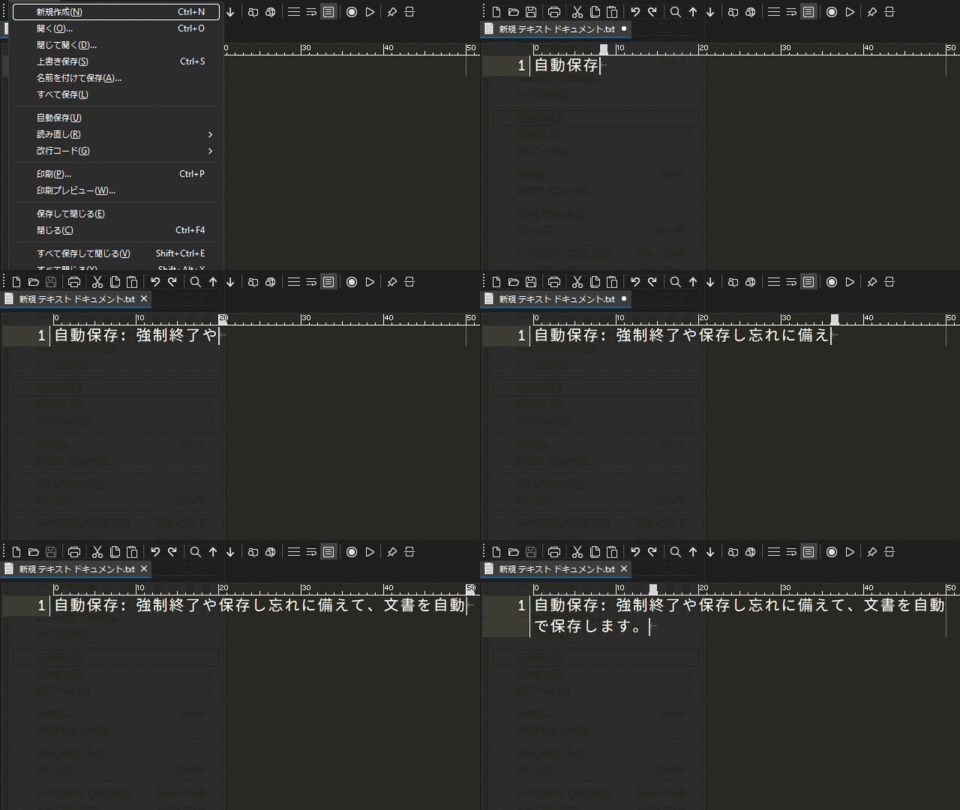 New 自動保存: 強制終了や保存し忘れに備えて、文書を自動で保存します。
 -
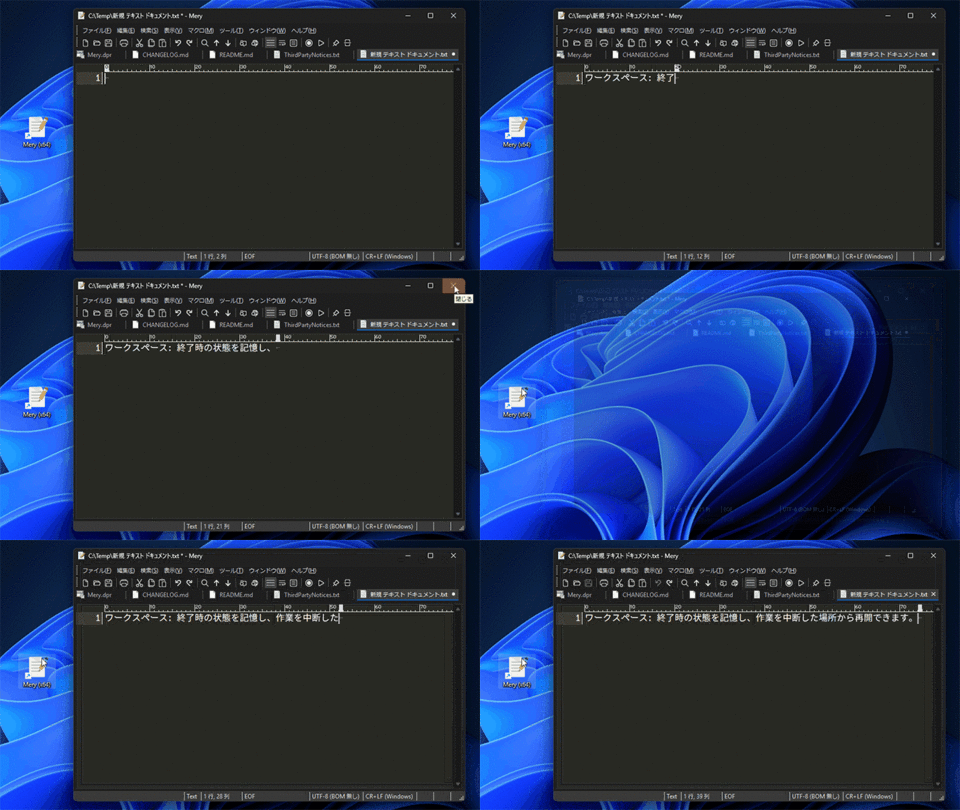 New ワークスペース: 終了時の状態を記憶し、作業を中断した場所から再開できます。
 -
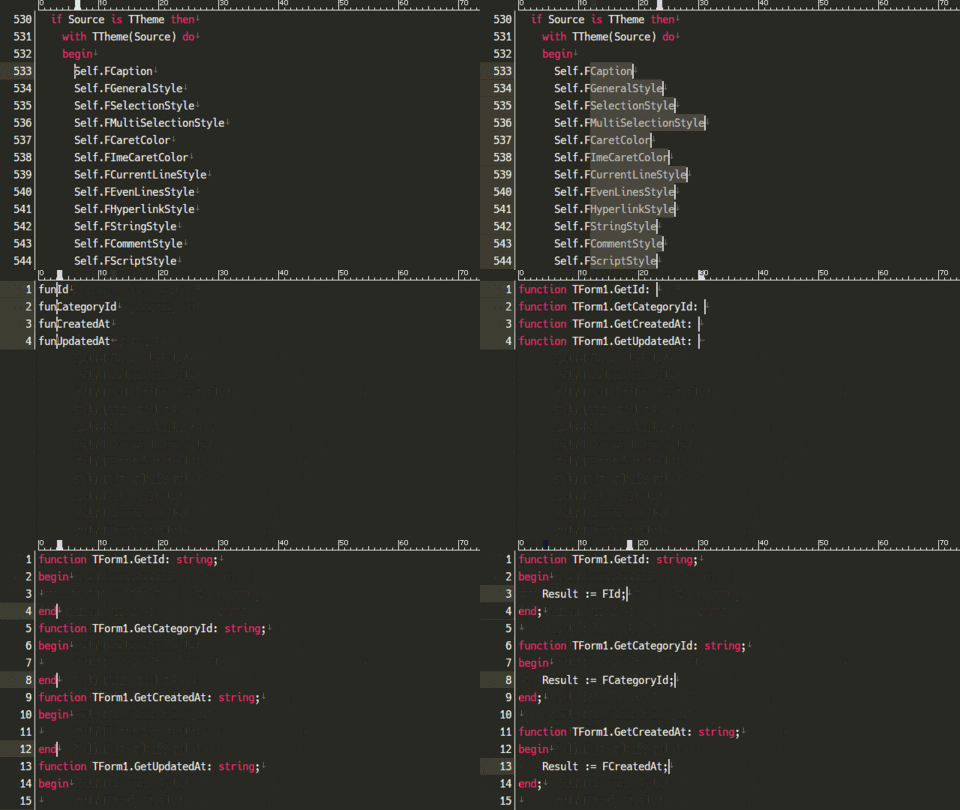 New マルチ カーソル: 複数箇所を同時に編集でき、一括変更や整列などが簡単に行えます。
 -
 New あいまい検索: 類似した文字列を簡単に検索し、表記のゆれや誤字などにも対応できます。


スポンサーリンク